See the real demo and four stages on the AI concert video page. Concert MV creates the performance from your photo.
Concert MV · 5 min read
Turn your Suno song into a music video starring you
One clear photo and an exported song become a vertical concert-screen performance.
Make my concert videoUpdated Nov 8, 2026
Start with your best 10–30 seconds
Launch offer: 300 credits per finished second until .
10 seconds
3,000 credits
30 seconds
9,000 credits
60 seconds
18,000 credits
3-minute song
54,000 credits
Cost uses the exact audio length, rounded up to the nearest credit. Poses, shots and final editing are included. Review your quote and balance before confirming.
Trim your audio before uploading if you want a shorter video.
On this page
Short answer
Download your song from Suno as MP3 or WAV, with the rights needed for your intended use. Trim it to the part you want, such as a 10–30 second chorus. Upload it to UseLipSync Concert MV with one clear photo of yourself and pick a stage. You get a vertical video of you singing on a giant concert screen, with your track as the audio. Review the current offer below and your exact task quote before confirming.
Choose your route and check your song’s rights
Use Video Lip Sync for music to match the visible mouth in an existing video to your track.
Suno’s current help describes commercial use rights for songs downloaded while subscribed. Check the terms for your actual track and intended use: Suno’s paid-subscription rights.
Suno says trial downloads are not eligible for commercial use. Read Suno’s current download rules before exporting and posting. A generic assumption about when a song was created is not a substitute for checking its license.
Step by step
- Export your song from Suno
Open the song in Suno and download an authorized MP3 or WAV. Concert MV accepts MP3, WAV and M4A from 4 seconds to 10 minutes, up to 50 MB.
- Pick the part you want and trim it
Start with your strongest 10–30 seconds before making the whole song. Trim it in an audio editor before uploading. Leave a little room at the start and end so the line isn’t cut mid-word. Concert MV uses the file you upload; the current tool does not select a shorter section for you.
- Choose one photo
Use one person with a clearly visible, well-lit face, looking roughly toward the camera. Your outfit comes from the photo. Keep the mouth unobstructed and avoid sunglasses. JPG or PNG, up to 5 MB. Use yourself, or someone who has agreed to appear.
- Pick a stage
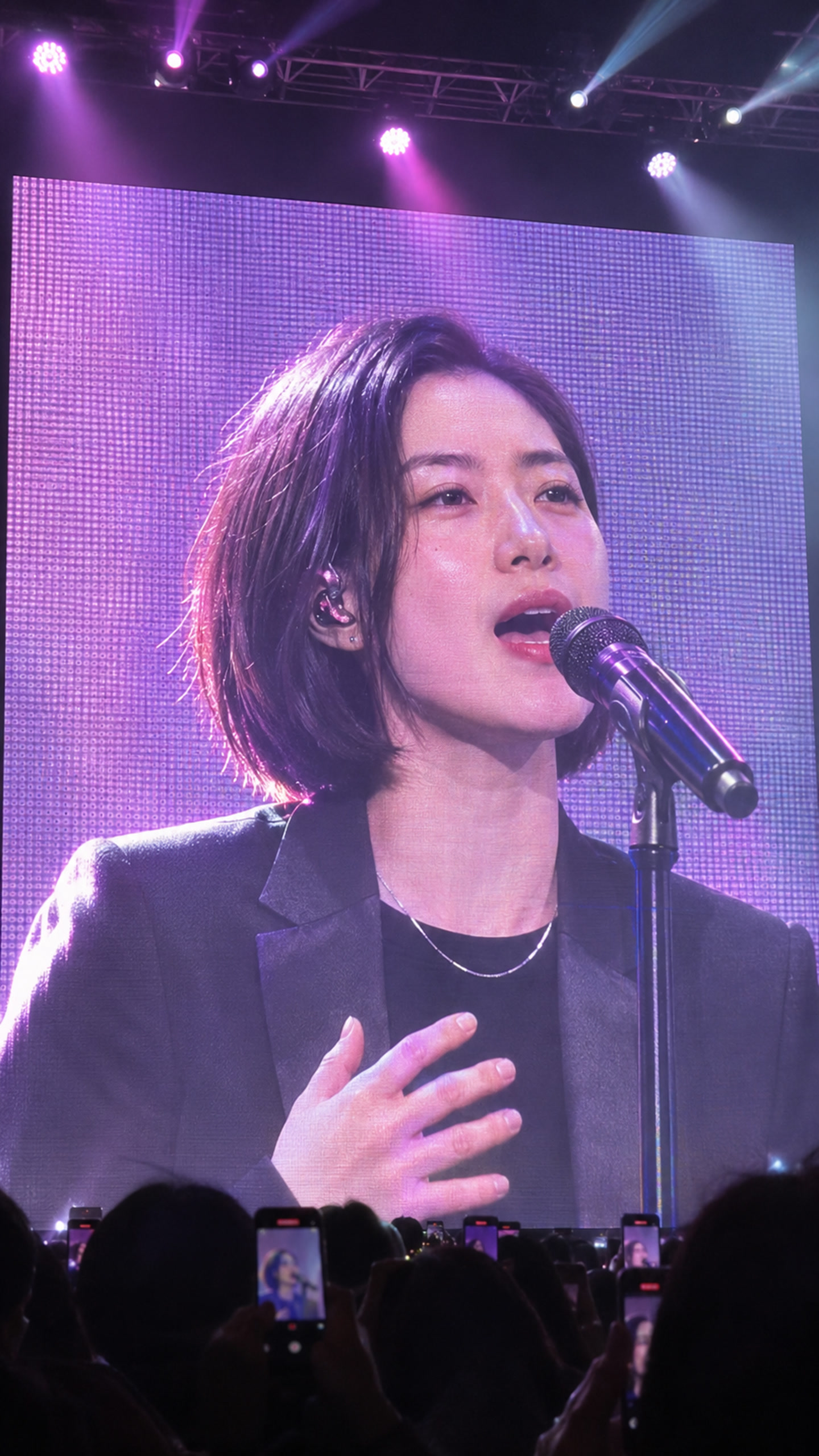
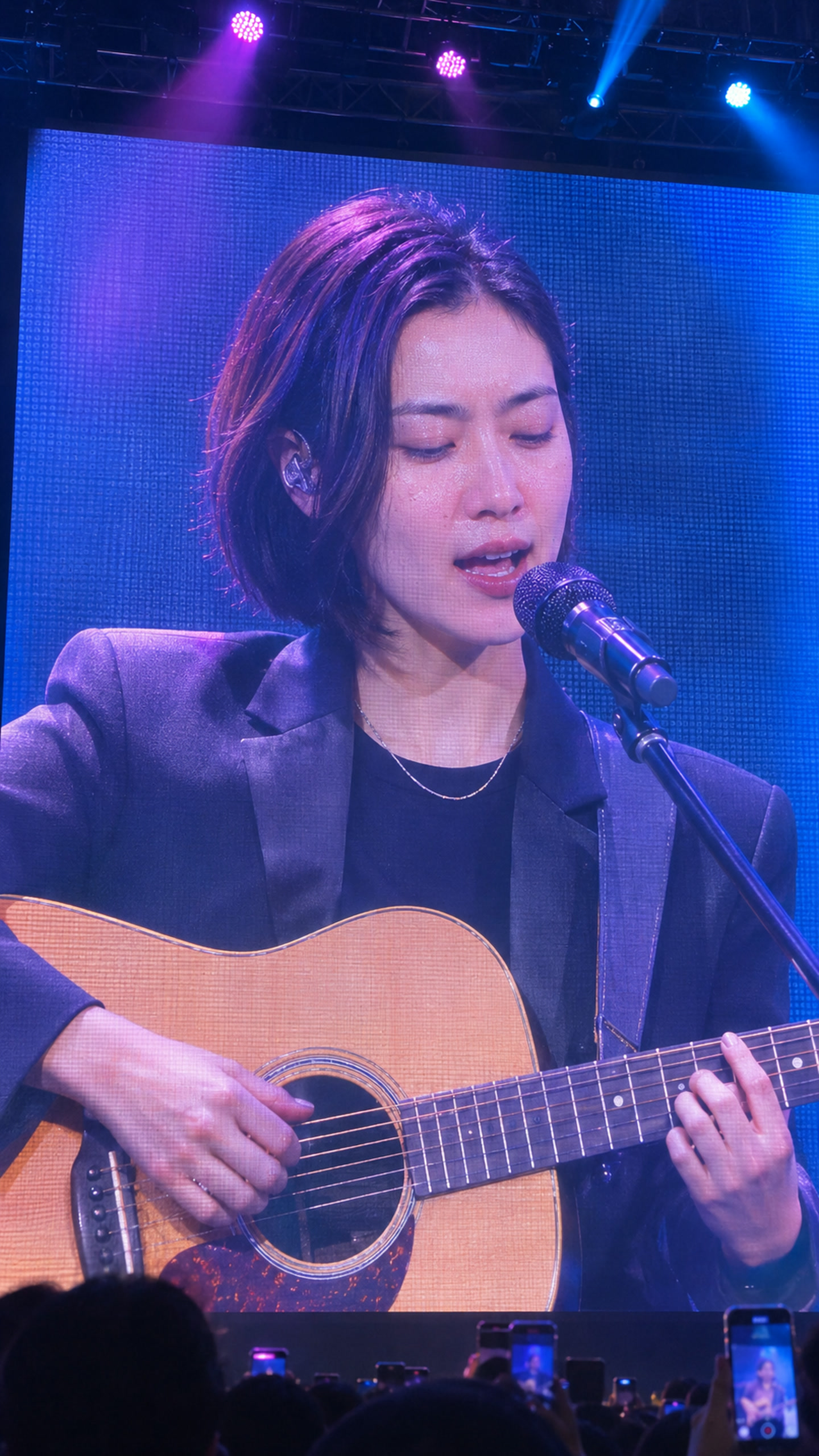
Choose Blue concert screen for a handheld mic, Violet vocal close-up for a mic stand, Guitar on the big screen or Piano on the big screen. Pick the stage that matches your song.
- Check the price and generate
Concert MV reads the exact length of your audio and shows the credit cost before anything starts. After you confirm, it plans the poses, shots and camera movement, generates each shot and assembles the full video with your song as the soundtrack. It can take a while; you can return through your Library.
- Watch it all, then post
Watch the full video before posting. Check the face, hands, instrument and mouth timing in every shot. The video is 9:16 for Shorts, Reels or TikTok. Use the player controls above to hear this demo’s actual song.
What stays the same
The finished video uses your uploaded track as its main audio, start to finish, without added sound effects.
Face, hair and outfit are guided by your photo. Generated details can drift between shots; review the full result.
The selected venue and lighting guide all shots of a video. The other three stage images on the landing page are scene previews, not additional generated examples.
What actually makes a difference
A clear lead vocal gives the model a better signal for mouth timing. If the vocal is buried under a heavy mix, try a version with the vocal higher.
Duets and choirs are performed by one person on screen. The current workflow creates a single performer.
A 10–30 second clip lets you review how your photo and song come out before spending credits on the full track.
Say that the performance is AI-generated and check the destination platform’s labeling requirements.
Concert MV puts the person from your photo on a concert screen singing your song. It does not add lyric captions or create a cast of characters.
Questions
Am I allowed to use my Suno song?
Check your track’s export and usage rights. Suno’s current help describes commercial rights for songs downloaded while subscribed; trial downloads do not qualify. Read the linked current rules before posting or monetizing.
Does it work with Udio or other AI music apps?
Yes. An MP3, WAV or M4A you have the right to use follows the same upload workflow. This demo’s song was made with Mureka, not Suno.
Is there a free version?
No. Review the current offer and exact price before you generate. Short clips cost less.
What if generation fails?
If a confirmed technical failure means you don’t get a complete video, all the reserved credits go back to your balance. An uncertain submission is held for reconciliation rather than automatically submitted again.
Can I make a video of a famous song or another person?
Only with permission from the rights holders and the person in the photo.
Related tutorials
Ready to try it?
One clear photo and an exported song become a vertical concert-screen performance.
Make my concert video