Use Recreate with one authorized character image and a 4–15-second reference video. The reference guides the performance; visual details are not guaranteed frame-for-frame.
Recreate · 4 min read
How to replace a person in a video with AI
Use one photo to recast the main subject of your short video while the reference guides motion, camera and timing.
Replace a person in your videoUpdated 2026-10-19
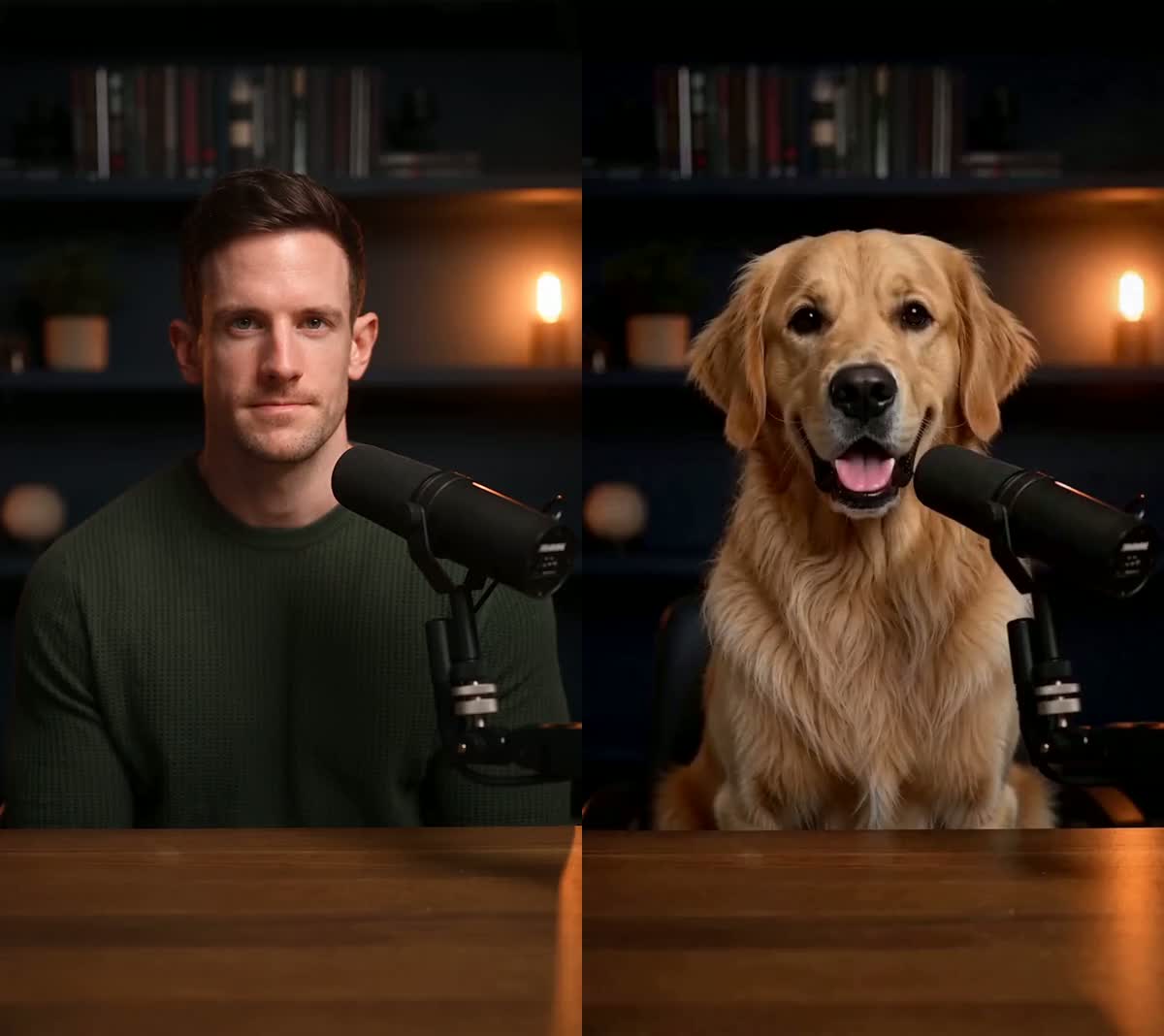
ReferenceRecreated
The short answer
To replace a person in a video, upload a 4–15-second MP4 or MOV you own or are authorized to edit, then add one authorized photo of the new person, pet, mascot or character in Recreate. The reference clip guides the action, camera and timing; choose “Keep the original sound” to request its existing audio. The result is generative, so appearance, sound and timing may vary. The tool shows the exact credit quote before submission; review the finished video before publishing.
Listen to a real reference and result
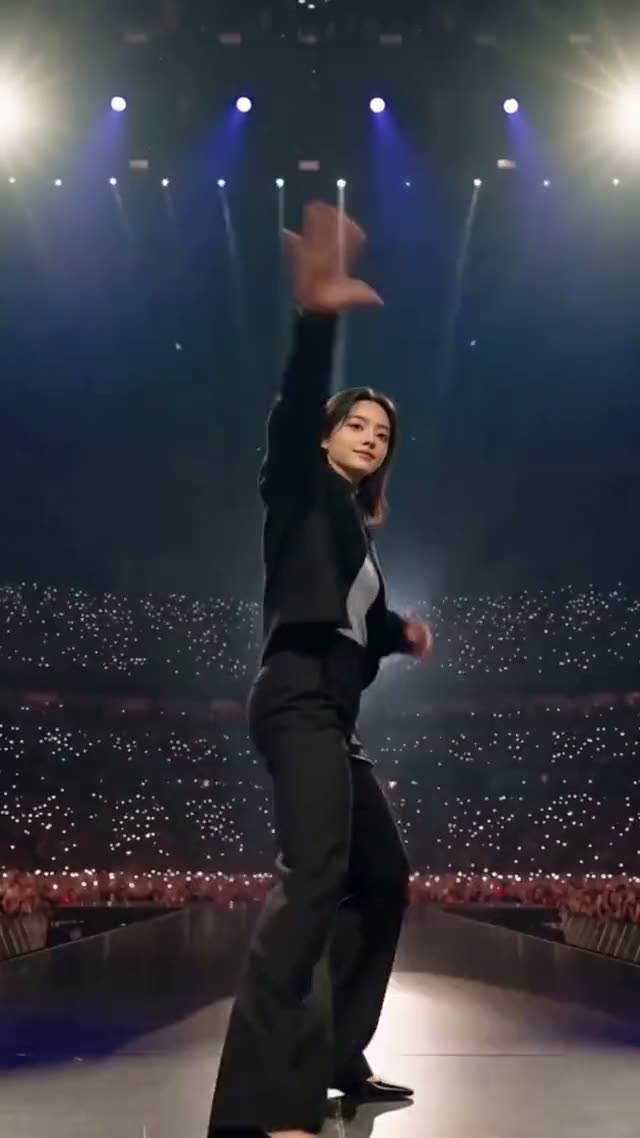
The hero above is a silent visual comparison. This separate Rockstar Entrance example has sound in both the original template and an existing Recreate result made with one AI character image. Press play on each clip to compare them.
Play one at a time with sound on. The generated clip is about half a second longer than the reference. This example does not guarantee exact audio transfer or perfect synchronization for other clips; review your own result before publishing.
Is Recreate the right kind of character swap?
Choose a dedicated face-swap editor. Recreate generates a new visible subject rather than applying only a face overlay.
Use Video Lip Sync with authorized replacement speech. Recreate’s “Keep the original sound” option aims to retain the reference audio; it is not a tool for intentionally writing new dialogue.
This uploaded-video Recreate workflow is not suitable. It currently targets one clear main subject and a clip of at most 15 seconds. The two-role Fateful Gaze template is a separate, limited exception—not support for arbitrary multi-person uploads.
Step by step
- Pick the performance you want to keep
Upload an MP4 or MOV you own, or choose a ready template. Recreate handles one clear main subject and reference clips between 4 and 15 seconds. A steady camera and an unobstructed subject transfer best.
- Upload one character image
A single JPG, PNG or WebP up to 10MB. One subject, facing the camera, evenly lit. This is the step that decides whether the result looks right, so it is worth picking a good photo rather than the first one you find.
- Choose whether the result keeps its sound
“Keep the original sound” asks the model to retain the reference clip's speech or music, but the generated sound or timing can differ. “No sound” gives you a silent video to dub yourself. Then confirm both rights statements — you need permission for the footage and the character.
- Generate and collect the result
The Generate button shows the exact price before you commit — 4,200 credits for a 6-second result, billed per second of output. Credits are reserved when the job starts and released automatically if it fails. You can leave the page; progress stays in your Library.
What the reference controls
The output follows the reference action and its overall timing closely.
Framing and camera movement are driven by the reference clip, not re-invented.
The output duration follows the reference duration, and key beats are designed to stay aligned.
“Keep the original sound” asks the model to retain reference audio when available. Listen to the finished result: sound and timing can still differ.
Burned-in captions and stickers are generally preserved with the reference, but generative output can vary — review the final result before publishing.
UI, product shots and price badges are designed to stay in place. Small text and fine detail are worth checking on the result.
What actually makes a difference
A photo where the face or head is turned toward camera transfers far better than a profile or a three-quarter shot with hair across the face.
The reference already supplies its own lighting and shadows. A flatly-lit source photo lets that lighting land on your character instead of fighting shadows baked into the photo.
A second person or pet in the frame gives the model two candidates for “the main subject”. Crop before uploading.
A 6-second clip holds identity better than a 15-second one. Longer output means more frames in which the subject can drift.
Sunglasses, a mask, a mug in front of the mouth — anything covering the face removes information the model needs to keep identity stable.
Questions
Do I need a video of the person I'm adding?
No. One still photo is enough. The motion comes entirely from the reference clip.
Can I use a pet or a cartoon character instead of a person?
Yes. People, pets, mascots, AI characters and illustrations all work. Pick the one that matches your photo when you submit.
Does the audio change?
“Keep the original sound” asks the model to retain the reference audio, but it is not a byte-for-byte audio transfer; sound or timing may vary. Choose “No sound” if you plan to add your own. The hero comparison is silent; the separate Rockstar example on this page has sound in both clips. Listen to your own reference and result before publishing.
What does it cost?
Recreate is billed per second of output at 700 credits per second, so a 6-second result is 4,200 credits. The price is shown on the Generate button before you commit.
What would a 10- or 15-second video cost in dollars?
A 10-second result uses 7,000 credits; the one-time $9.99 pack adds 7,000 credits. A 15-second result uses 10,500 credits; the one-time $15 pack adds 11,000. Your existing balance counts toward either result, so the tool shows the exact shortfall and the smallest single pack that covers it after you select your clip.
Is this only a face swap?
Recreate is for changing the main visible character while using the reference for the action, camera and timing — not just overlaying a new face. It works best with one clear subject. It does not let you independently replace every person in a crowded uploaded clip, and generative details can vary; review the result before publishing.
What happens if the generation fails?
Reserved credits are released automatically. You are not charged for a technical failure.
Related tutorials
Ready to try it?
Use one photo to recast the main subject of your short video while the reference guides motion, camera and timing.
Replace a person in your video